
Camera Control
Prerequisite:
OS Compatibility: You can use the Z CAM Web Browser on Mac, Windows and Linux users.
IP: Finding & Checking
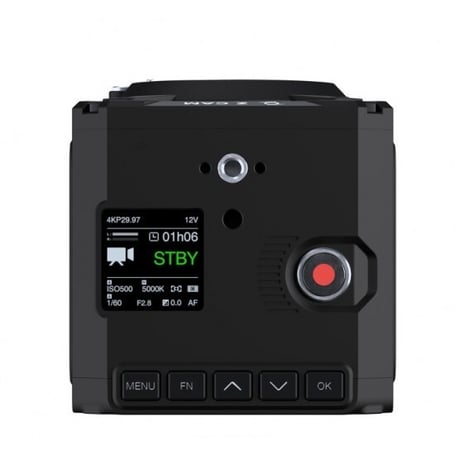
- Check the small LCD screen on the top of each camera.
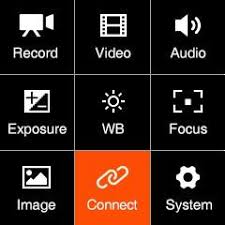
- Press Menu and navigate to Connect/Network
- Ensure the ETH Mode is set to Static
- IPs must be set to Static mode to ensure the Master/Slave relationship remains permanent and doesn't reset after a power cycle.
- The current assigned IP address is shown under ETH IP.
- Note: Out of the box, multiple cameras may attempt to claim the same default IP. Connect them to the switch one at a time to configure them initially.
Changing IPs
- Connect a single camera: Plug only one camera into your network switch at a time. Connecting multiple cameras simultaneously will cause an IP address conflict, as they default to the same IP.
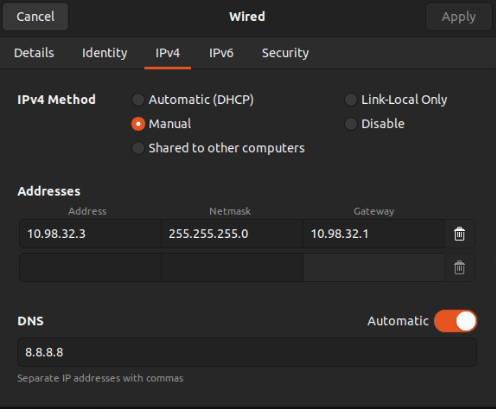
- Verify the Z-Cam's default IP address and configure your computer's host network to match the camera's subnet. Example configuration: Camera IP
10.98.32.11/ Computer IP10.98.32.3.
- Verify the Z-Cam's default IP address and configure your computer's host network to match the camera's subnet. Example configuration: Camera IP
- Open the IP settings in a web browser: Type the IP address displayed on the camera's LCD screen into your browser (Chrome, Edge, or Firefox).
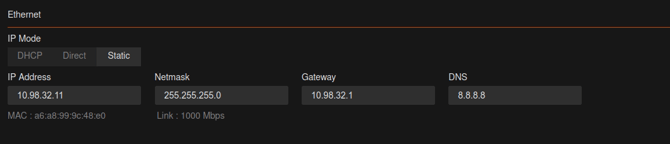
- Change the camera IP: Navigate to the network settings, change the IP address, and set it to Static.
- Make a note of the Updated IPs: The cameras must all belong to the same Subnet. This means the first three sets of numbers in the IP address match, allowing them to talk to each other and your computer.
- Unplug this camera and repeat steps 1–4 for each remaining camera.
Example IPs
Camera
- IP:
10.98.32.11 - Netmask:
255.255.255.0 - Gateway:
10.98.32.1 - DNS:
8.8.8.8
Host Device
- IP:
10.98.32.3 - Subnet:
255.255.255.0- Mandatory Prerequisite
- Gateway:
10.98.32.1 - DNS:
8.8.8.8
Note: You will need to edit the IP again in the device list to your updated IP to reconnect to the camera. The purpose of changing IPs at this stage is to prevent multicamera network conflict from the default IPs as mentioned above.
Checking Z-Cam Firmware
When setting up your Z Cams for the first time, ensure that all cameras are running the same firmware version. Since firmware is set during factory packaging, units often arrive with outdated versions if a new update has been released.
- Open the IP settings in a web browser, then navigate to Settings > System. Scroll to the bottom of the page to find your camera's firmware version and serial number.
- Follow Updating Z-Cam Firmware to update your camera firmware.
Getting Started with Peel Capture
With the setup complete, access each camera's individual interface by typing its IP address into your web browser. You are now ready to configure Peel Capture
Next Step: Using Peel Capture with Z-Cams → Continue to the next article in System Prep & Setup