Prerequisite - Network should be configured as per Z-Cam Hardware Setup and Software Setup.
For first-time Peel Capture setup, be sure to apply the recommended Z-Cam settings.
Configure your Project
The Genesis Installation Guide automatically installs the latest version of Peel Capture alongside the main application on Ubuntu. To launch it, simply search for "Peel Capture" on your system.
A Windows version of Peel is available; please contact the team if you need the installation file.
Creating a New Shoot
- Go to File > New Shoot to create a new shoot.
- Select a shoot name and choose a file directory — this is where your captured recordings will be saved once harvested.
- Click OK to generate a new project.
.png?width=670&height=377&name=Screenshot%20from%202026-04-01%2008-46-31%20(1).png)
Adding Camera Devices
- Navigate to the Devices tab in the bottom-right panel of the UI.
- Click the + icon and select Move AI from the New Device dropdown.
- Name your cameras, we recommend naming your master camera Cam1, followed by sequential names for each subordinate camera in your setup.
- Example: In a four-camera configuration, label your cameras (Cam1, Cam2, Cam3, and Cam4).
- Input the camera's Ethernet IP address: the default address is 10.98.32.1
- To verify the camera IP, open your browser and enter this URL: (For example http://10.98.32.1/www/html/controller.html.)
- When a camera has been added successfully, it will turn green in the Devices tab. This means the camera is connected and ready to begin recording.
- If the camera column appears bright white, the system cannot locate a device at the entered IP address. Please verify that the IP address is correct and the camera is powered on.
- Camera role (Single, Master, Subordinate)
- Sync status (SYNC vs no sync)
- Recording duration available on camera (based on current settings)
- Percentage of space remaining on the cameras cardIn the status table you will be able to see multiple pieces of information
.png?width=550&height=453&name=Screenshot%20from%202026-04-01%2009-12-21%20(1).png)
Watch the video below to learn how to add and configure your devices within a session.
Confirm Naming Convention
-
Locate the white bar in the middle of the UI (shown as Shot1_001 in this example).
.png?width=596&height=458&name=Screenshot%20from%202026-04-01%2009-28-37%20(1).png)
-
Double-click the white bar to open the Take Name Format popup.
-
Ensure the field reads {name}_{take%3} — if it is empty, enter this value manually and click Ok.
-
Note: If this field is left empty, you will be unable to harvest your videos at the end of your shoot.
.png?width=540&height=451&name=Screenshot%20from%202026-04-01%2009-35-43%20(1).png)
Configure Shoot Settings
This step is optional, but completing it provides helpful context for your project.
- Go to File > Settings.
- Click on the General Tab.
- Set Select names, separated by comma - e.g.
A,B,C- Use this feature to organize your recordings and select specific takes for ingestion into Genesis
- Set a Record Delay, so that you can click record and enter the space before they begin recording.
.png?width=615&height=409&name=Screenshot%20from%202026-04-01%2009-44-38%20(1).png)
Manage All Cams
Mandatory: You must follow these instructions exactly to prevent configuration inconsistencies between your cameras.
- Click the Manage All Cameras button
- If the camera panel is not visible, navigate to Window > MoveAI Cameras to toggle the interface.
- Note: If the box is already ticked, toggle it off and on again to open the new tab.
- The Move AI Camera Properties tab will appear displaying
- You may now configure the settings to your requirements. Please note that after a value is modified, it may take 5–10 seconds for the change to take effect.
.png?width=350&height=552&name=Screenshot%20from%202026-04-01%2010-12-03%20(1).png)
Things to look out for:
- Ensure the following settings are identical across all cameras: VFR, Project FPS, Anti Flicker, Resolution, Codec, and Playback FPS.
- If any of these settings display -Multiple--, there is an inconsistency between cameras that must be resolved. Peel Capture will provide an error message if you try to capture with inconsistencies.
- Note: --Multiple-- is expected for Temperature, as these will differ between cameras.
- Changing the Resolution setting will automatically reset VFR to **Off,**ensure you enable it to your desired framerate.
- If Resolution is set to 4K and Codec is set to H.264, the maximum VFR is 60 — to exceed this, update the Codec to H.265.
Managing Individual Cameras
- Individual camera settings can also be viewed and managed separately.
- In the Move AI Cameras tab, double-click the preview of the desired camera to open its settings, these will appear in the same format as the Manage All Cameras view.
Record Takes
- Set the shot name. The take no. will increment automatically each time you hit record.
- Note: If the Previewed Take Name field appears blank and red during recording, it indicates an error in the naming convention. Please return to the Confirm Naming Convention section above to resolve the issue.
- Structure:
- Shoot
- Shot
- Takes
- Shot
- Shoot
- Click Record
- Select End Recording once you have successfully captured your take.
- Mark your preferred takes as Selects (A,B,C) to ensure that only chosen footage is harvested for processing.

Harvest Takes
With your recordings finished and 'Selects' labeled, the final step is to export the video files from the cameras for processing.
- Click Publish > Collect Files
- Ensure the harvest location is your project folder.
- Choose if all takes should be harvested, or just the desired Select categories
- All cameras are checked by default. To harvest from specific cameras only, uncheck the devices you do not need.
- Click Get Files to begin the harvest
- Click Browse Files to open the destination folder
Import into Genesis
- Create a new project in Genesis (File > New Project)
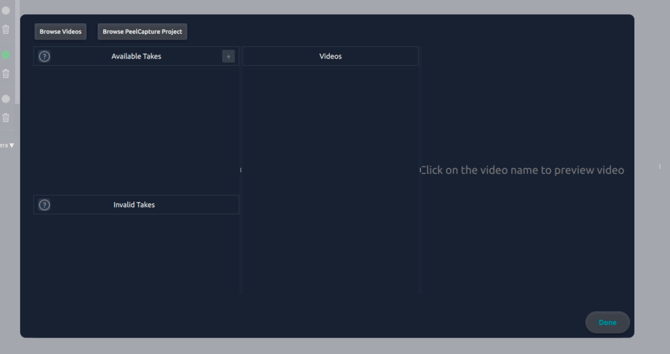
- Click Import Takes from Folder
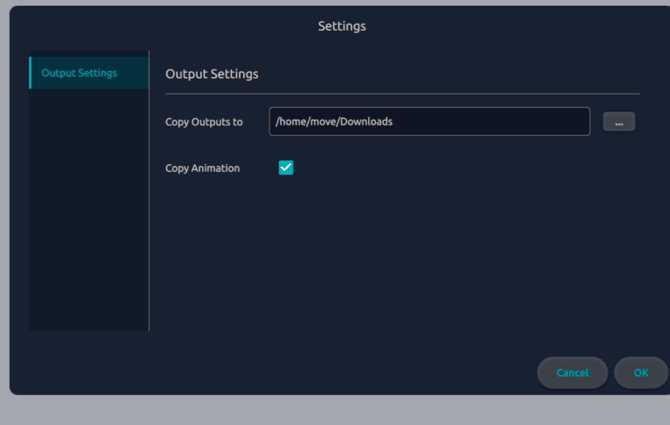
- When importing, select
Import from Peel Captureoption to ensure output files are copied back to the Peel Capture Project.- This will set the Peel Project directory for the ‘Copy outputs to’ setting.