
For a step-by-step guide on operating Peel Capture, please check out our Configure your Peel Capture Project documentation.
Harvest Calibrations
With your recordings finished and 'Selects' labeled, the final step is to export the video files from the cameras for processing.
- Click Publish > Collect Files
- Ensure the harvest location is your project folder.
- Choose if all takes should be harvested, or just the desired Select categories
- All cameras are checked by default. To harvest from specific cameras only, uncheck the devices you do not need.
- Click Get Files to begin the harvest
- Click Browse Files to open the destination folder
Import into Genesis
- Create a new project in Genesis (File > New Project)
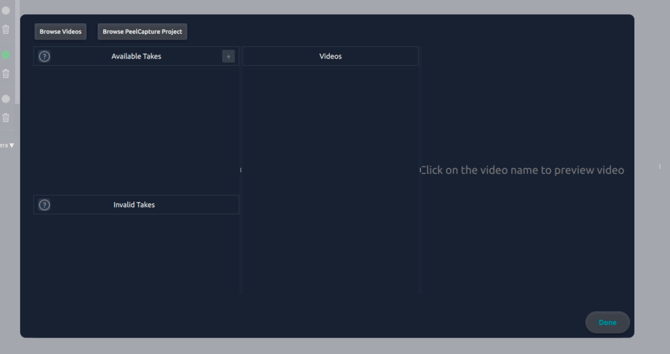
- Click Import Takes from Folder
- When importing, select
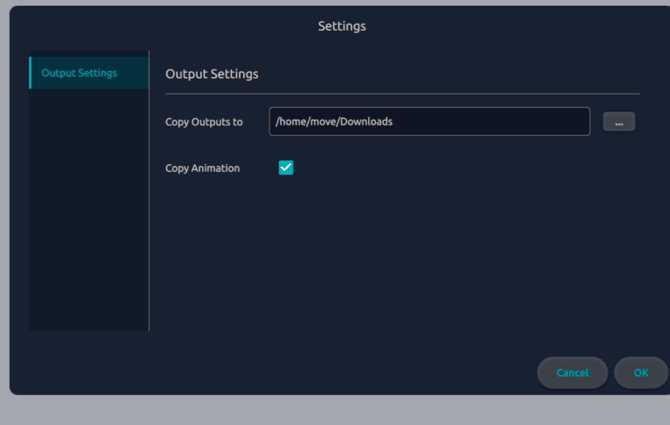
Import from Peel Captureoption to ensure output files are copied back to the Peel Capture Project.- This will set the Peel Project directory for the ‘Copy outputs to’ setting.
Next Step: Post Processing Intrinsic Calibration → Continue to the next article in System Prep & Setup.