---
title: Post Processing Intrinsic Calibration
description: Master camera calibration for Move AI. Learn how to print a precision checkerboard, capture high-quality intrinsic videos, and process camera profiles in Genesis for maximum tracking accuracy.
---
[Skip to content](https://docs.move.ai/knowledge/genesis-creating-and-processing-intrinsics#main-content)

Open main navigation
Close main navigation
- [Move](https://www.move.ai/)
[Move](https://www.move.ai/)
Welcome to the Move Knowledge Base
- There are no suggestions because the search field is empty.
1. [Move Docs](https://docs.move.ai/knowledge?hsLang=en)
2. [Genesis](https://docs.move.ai/knowledge/genesis?hsLang=en)
3. [Genesis Post](https://docs.move.ai/knowledge/genesis?hsLang=en#genesis-post)
# Post Processing Intrinsic Calibration
We provide **4K** and **HD** demo intrinsics to streamline your initial setup and allow you to begin recording immediately. While these are useful for testing, we strongly advise creating your own lens intrinsics for any long-term or permanent setup.
**CRITICAL PREREQUISITE:**
When using the demo intrinsics,the Laowa lens must be set to **'infinity.'** Failure to do so will result in calibration errors.
A **camera profile** in Genesis defines the **camera intrinsics** (focal length, principal point, and distortion). You can either:
1. **Process a new intrinsics file** using the Genesis application.
2. **Import an existing intrinsics file** (YAML)
### **1. Processing the Intrinsics in Genesis**
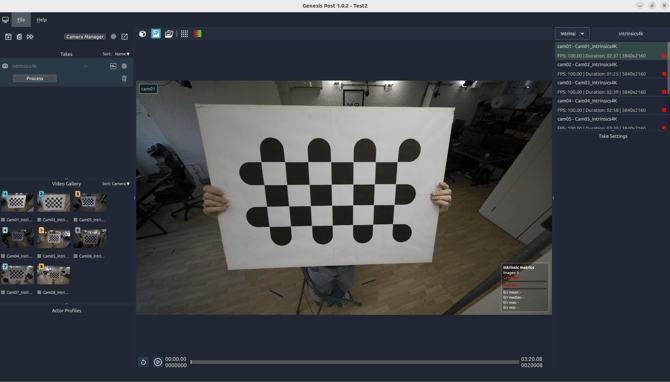
1. Click **Import takes from Folder**
2. Click **Browse PeelCapture Project** and select the folder directory of your Peel Capture shoot.
3. Select **Import** on the specific Intrinsic takes.
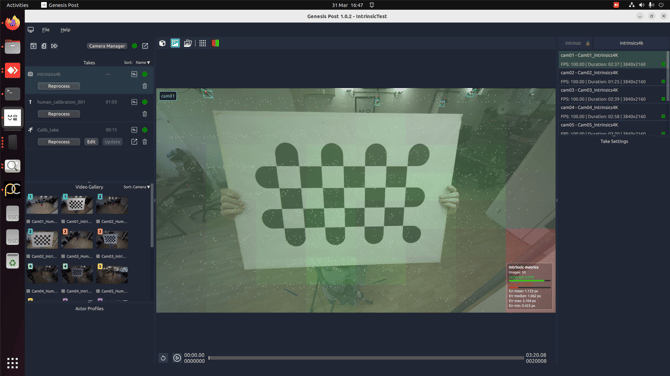
4. Select the **Intrinsic** take and verify that the take type is correctly set to **Intrinsic**.
5. Click **Process**
1. This will take between 10-20 minutes to process successfully.
6. After successful processing, use the toggle settings to view or hide the **Keypoint Detection** and **Coverage Overlay** indicators(This can be found in the tool bar above the video playback).These controls are located in the central toolbar, positioned directly above the video playback window.
1. For an intrinsic calibration to be successful we would recommend atleast 90% coverage of the grid.
7. Following a successful intrinsic calibration, you may proceed with capturing your [**extrinsic calibration**](https://docs.move.ai/knowledge/genesis-checkerboard-calibration-?hsLang=en).
**Next Step:** [Checkerboard Extrinsic Calibration](https://docs.move.ai/knowledge/genesis-checkerboard-calibration-?hsLang=en) → Continue to the next article in System Prep & Setup.
- [Genesis](https://docs.move.ai/knowledge/genesis?hsLang=en#main-content)
- [Overview](https://docs.move.ai/knowledge/genesis?hsLang=en#overview)
- [System Prep & Setup](https://docs.move.ai/knowledge/genesis?hsLang=en#system-prep-setup)
- [Genesis Live](https://docs.move.ai/knowledge/genesis?hsLang=en#genesis-live)
- [Genesis Post](https://docs.move.ai/knowledge/genesis?hsLang=en#genesis-post)
- [Output Data](https://docs.move.ai/knowledge/genesis?hsLang=en#output-data)
- [Optimising your System](https://docs.move.ai/knowledge/genesis?hsLang=en#optimising-your-system)
- [System Management](https://docs.move.ai/knowledge/genesis?hsLang=en#system-management)
- [Release Notes](https://docs.move.ai/knowledge/genesis?hsLang=en#release-notes)
- [Move One](https://docs.move.ai/knowledge/move-one?hsLang=en#main-content)
- [Move One Pricing](https://docs.move.ai/knowledge/move-one?hsLang=en#move-one-pricing)
- [Move Platform](https://docs.move.ai/knowledge/move-one?hsLang=en#move-platform)
- [Move One iOS App](https://docs.move.ai/knowledge/move-one?hsLang=en#move-one-ios-app)
- [Using your Animations](https://docs.move.ai/knowledge/move-one?hsLang=en#using-your-animations)
- [Legacy Accounts - App Store Billing](https://docs.move.ai/knowledge/move-one?hsLang=en#legacy-accounts-app-store-billing)
- [Troubleshooting](https://docs.move.ai/knowledge/troubleshooting?hsLang=en#main-content)
- [Z-Cams](https://docs.move.ai/knowledge/troubleshooting?hsLang=en#z-cams)
- [Genesis](https://docs.move.ai/knowledge/troubleshooting?hsLang=en#genesis)
[](http://move.ai)
www.move.ai
Copyright © 2026, Move AI