
Note: These are the camera settings we use in our own studio setup at MOVE. We highly recommend adopting this configuration when setting up your Z Cams. To learn more about recommended Z CAM settings, check out our documentation.
Z CAM User Profile is a custom preset slot that allows operators to save, export, and quickly recall a specific group of camera settings. Instead of manually altering multiple menu options when switching shooting scenarios, you can save your preferred configuration to a profile and reload it instantly.
What Settings Are Saved
- Record Menu: Resolution, Project FPS, File Format (MOV/MP4), Playback Frame Rate, Encoder (H.264, H.265, ProRes variations, ZRAW), Bitrate, and Pre-Roll status.
- Video Menu: Variable Frame Rate (VFR) status and specific frame rate values, Crop Sensor mode, and Low Jello mode.
- Audio Menu: Input type (Mic/XLR/Off), Input Gain controls, Noise Reduction toggles, and Audio Encoder format (AAC/PCM).
- Exposure & White Balance: ISO/Extended Manual ISO limits, Shutter Operation (Speed vs Angle) and values, Aperture configurations, White Balance mode (Auto, Manual, Presets like Daylight/Cloudy), Kelvin/Tint values, and White Balance Lock in Record.
- Image Profile: Selected gamma curves (Z-Log2, Rec.709, Flat, etc.) and applied LUT statuses.
Note: Network/IP settings, Camera ID, EZLink/PixelLink roles, and Time Code values remain unaffected.
Downloading a Camera Profile
Our Z-cam presets can be found here. Here you will find the examples listed below:
- 4K 100FPS H.264 - 50hz Flicker Reduction
- 4K 120FPS H.264 - 60hz Flicker Reduction
Note: Capturing 4K in H.264 on Z-Cams results in larger video file sizes, but offers faster processing speeds.
Make sure to download the camera profile matching your region's grid frequency (50Hz or 60Hz) for proper flicker reduction.
Applying a Camera Profile
- Connect to the camera's web interface by navigating to the camera's IP address in a browser (e.g.
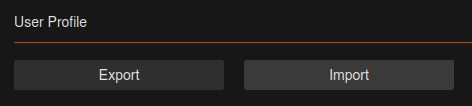
http://10.98.32.11) - Go to Settings and locate the Maintenance > User Profile section
- Import the
.prfprofile file provided by Move AI - Confirm the settings have been applied before starting a capture session
Saving and Backing Up Profiles
Prerequisites
If the camera image appears unclear or underexposed, it is crucial to increase your physical capture volume lighting rather than adjusting the camera settings to compensate. The following baseline settings are optimized to guarantee the highest output quality.
- Apply our camera profile first, then configure the remaining settings to suit your capture needs.
- Export and save the camera profile as a backup. Settings>Maintenance>Export
- Firmware updates can reset settings, always re-check after any firmware change
- Store profile files in a shared location accessible to your capture team
Notes
- Settings can be refined based on studio lighting, lens choice, and capture distance. Have a read of our Studio considerations documentation.
- Contact the Move team if you need a profile tailored to a specific capture setup