---
title: Initial System Setup
description: Learn how to complete the initial Genesis Live system setup by adding camera devices, starting camera streams, and understanding the camera panel status and performance metrics.
---
[Skip to content](https://docs.move.ai/knowledge/initial-system-setup-#main-content)

Open main navigation
Close main navigation
- [Move](https://www.move.ai/)
[Move](https://www.move.ai/)
Welcome to the Move Knowledge Base
- There are no suggestions because the search field is empty.
1. [Move Docs](https://docs.move.ai/knowledge?hsLang=en)
2. [Genesis](https://docs.move.ai/knowledge/genesis?hsLang=en)
3. [Genesis Live](https://docs.move.ai/knowledge/genesis?hsLang=en#genesis-live)
# Initial System Setup
1. Open **Genesis Live** and create a new project.
2. Click **Add Camera Device**
1. 1. The camera should appear, and its status will highlight green and display **Reachable**.
2. If a camera is unreachable, ensure it has been set up correctly using the hardware and software setup articles.
2. Click ‘Add Camera’
1. Repeat steps 2 and 3 until all cameras have been added to the project.
3. When all cameras have been added successfully, they will be listed in the top-left corner of the Genesis Live application.
1. **Note:** These camera devices will stay open in all new projects.
---
### Camera Stream
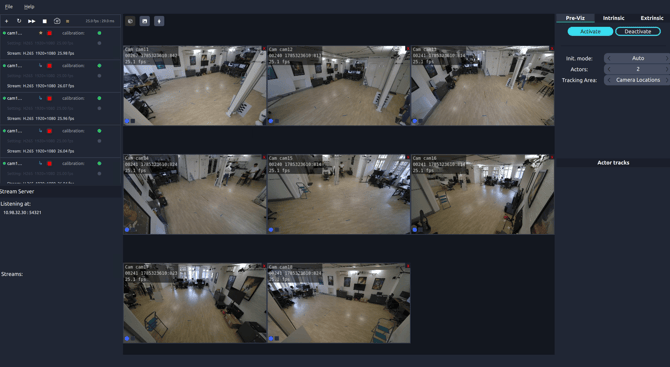
Click ‘**Start all camera streams**’ to view all cameras in your project. You can also open streams individually from the camera panel on the left-hand side of the screen. The example below shows 8 Z Cam streams running in Genesis Live.
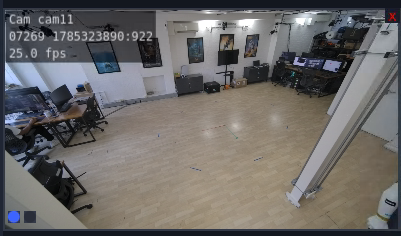
Each camera stream will demonstrate the Render FPS for each camera.
---
### Camera Panel
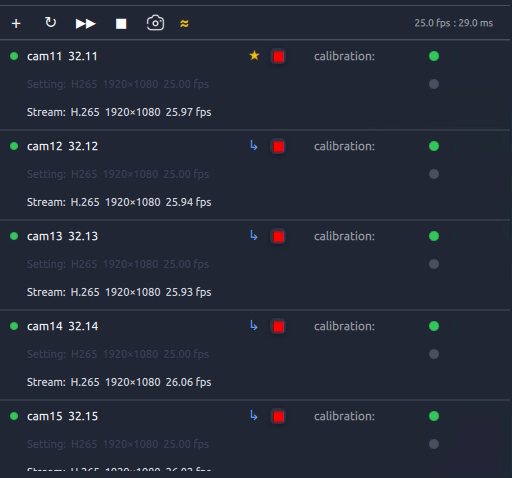
Within each camera panel in the camera list we have multiple properties to look out for.
- Camera ID
- Stream Codec
- StreamResolution
- Stream FPS
- Output FPS
- Sync Gap
- [Genesis](https://docs.move.ai/knowledge/genesis?hsLang=en#main-content)
- [Overview](https://docs.move.ai/knowledge/genesis?hsLang=en#overview)
- [System Prep & Setup](https://docs.move.ai/knowledge/genesis?hsLang=en#system-prep-setup)
- [Genesis Live](https://docs.move.ai/knowledge/genesis?hsLang=en#genesis-live)
- [Genesis Post](https://docs.move.ai/knowledge/genesis?hsLang=en#genesis-post)
- [Output Data](https://docs.move.ai/knowledge/genesis?hsLang=en#output-data)
- [Optimising your System](https://docs.move.ai/knowledge/genesis?hsLang=en#optimising-your-system)
- [System Management](https://docs.move.ai/knowledge/genesis?hsLang=en#system-management)
- [Release Notes](https://docs.move.ai/knowledge/genesis?hsLang=en#release-notes)
- [Move One](https://docs.move.ai/knowledge/move-one?hsLang=en#main-content)
- [Move One Pricing](https://docs.move.ai/knowledge/move-one?hsLang=en#move-one-pricing)
- [Move Platform](https://docs.move.ai/knowledge/move-one?hsLang=en#move-platform)
- [Move One iOS App](https://docs.move.ai/knowledge/move-one?hsLang=en#move-one-ios-app)
- [Using your Animations](https://docs.move.ai/knowledge/move-one?hsLang=en#using-your-animations)
- [Legacy Accounts - App Store Billing](https://docs.move.ai/knowledge/move-one?hsLang=en#legacy-accounts-app-store-billing)
- [Troubleshooting](https://docs.move.ai/knowledge/troubleshooting?hsLang=en#main-content)
- [Z-Cams](https://docs.move.ai/knowledge/troubleshooting?hsLang=en#z-cams)
- [Genesis](https://docs.move.ai/knowledge/troubleshooting?hsLang=en#genesis)
[](http://move.ai)
www.move.ai
Copyright © 2026, Move AI
```json
{
"@context" : "https://schema.org",
"@type" : "VideoObject",
"contentUrl" : "https://26134430.fs1.hubspotusercontent-eu1.net/hubfs/26134430/video_assets/445137728734/inherited/web_optimized.mp4",
"dateModified" : "2026-07-30T08:54:22.009Z",
"duration" : "PT48S",
"height" : 1080,
"name" : "AddingCameras",
"thumbnailUrl" : "https://26134430.fs1.hubspotusercontent-eu1.net/hubfs/26134430/AddingCameras.webm/medium.jpg",
"uploadDate" : "2026-07-30T08:54:22.007Z",
"width" : 1920
}
```