- Open Genesis Live and create a new project.
- Click View camera calibrations
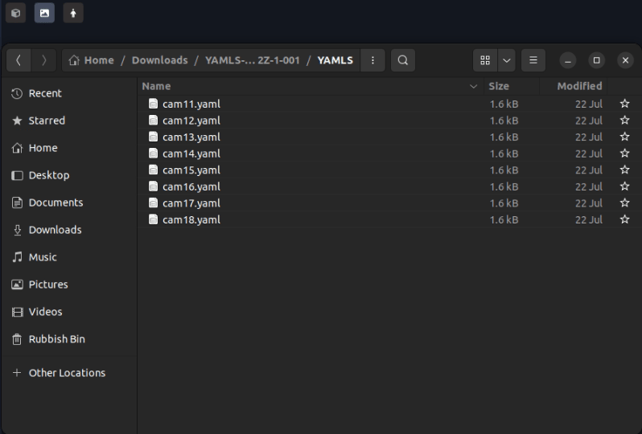
- Note: ensure the file name matches the device name. For example, the camera ID shown below are numbered 11 through 18. The YAML files match the cameras configured in your project.
- Select the folder containing the individual YAML file for each camera.
- Click Open
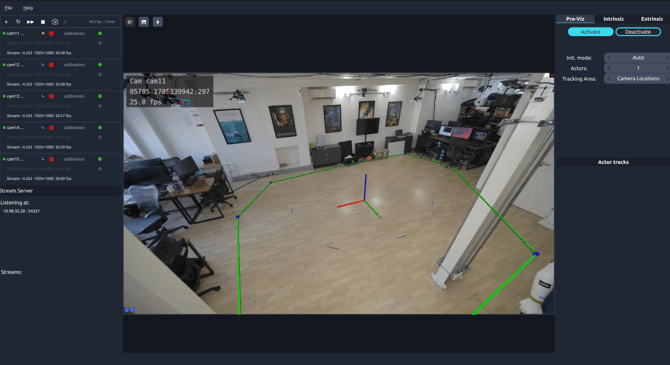
- A successful import will bring the calibration into the project. Follow the steps below to confirm.
- Each cameras status will show a green dot which is stating the cameras are fully calibrated
- Click Show/Hide 3D Overlay to verify the calibration. If the extrinsic calibration is correct, the active area will align with the floor plane and the cameras will match their physical positions within the capture volume