---
title: Post Processing and Using Actor Profiles
description: Optimize your animation quality by processing Actor Profiles. Learn how to lock in consistent bone lengths, choose sync methods, and generate high-quality skeletal data.
---
[Skip to content](https://docs.move.ai/knowledge/genesis-processing-actor-profiles#main-content)

Open main navigation
Close main navigation
- [Move](https://www.move.ai/)
[Move](https://www.move.ai/)
Welcome to the Move Knowledge Base
- There are no suggestions because the search field is empty.
1. [Move Docs](https://docs.move.ai/knowledge?hsLang=en)
2. [Genesis](https://docs.move.ai/knowledge/genesis?hsLang=en)
3. [Genesis Post](https://docs.move.ai/knowledge/genesis?hsLang=en#genesis-post)
# Post Processing and Using Actor Profiles
For the best results, use the following step-by-step process to build your Actor Profile.
An **Actor Profile** stores the specific skeletal data for a performer. By applying a single profile across all takes, you ensure consistent bone lengths throughout your project, rather than relying on per-take estimations.
1. This provides consistency in the bone lengths in the pre-retargeted output data.
2. This ensures the highest-quality animation solve.
1. This provides consistency in the bone lengths in the pre-retargeted output data.
2. This ensures the highest-quality animation solve. \
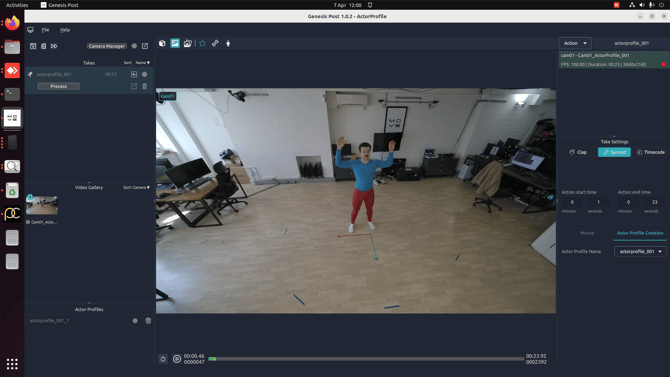
3. To access the Actor Profile settings, please verify that the take is categorized as an **Action** in the interface.
4. In the Take settings, select the sync method for your action take.
1. If using a synchronised camera such as the Z CAM, select **Synced** or **Time Code** depending on whether you require time code synchronisation with your animation data.
2. If you are not using a synchronised camera, select **Clap Sync** and enter your clap times.
3. Set your **Action Start** and **End** times based on duration of your Actor Profile.
From here, configure the remaining settings:
1. Switch the Action Take mode from Mocap to Actor Profile Creation
2. Select an existing profile to overwrite it, or create a new one
1. Actor profiles can be renamed from the Actor Profile list on the left hand side, by double clicking on the name
3. Click **Process** on the desired Take, or use the Process All Takes button (far right in the project options bar to queue up all available takes).
**Note**: A calibration must be processed before the Actor Profile can be created. This will be handled automatically if using the **Process All Takes button**.
**Next Step:** [Post Processing an Animation Take](https://docs.move.ai/knowledge/genesis-processing-an-action-take?hsLang=en)→ Continue to the next article in Processing on Genesis.
---
- [Genesis](https://docs.move.ai/knowledge/genesis?hsLang=en#main-content)
- [Overview](https://docs.move.ai/knowledge/genesis?hsLang=en#overview)
- [System Prep & Setup](https://docs.move.ai/knowledge/genesis?hsLang=en#system-prep-setup)
- [Genesis Live](https://docs.move.ai/knowledge/genesis?hsLang=en#genesis-live)
- [Genesis Post](https://docs.move.ai/knowledge/genesis?hsLang=en#genesis-post)
- [Output Data](https://docs.move.ai/knowledge/genesis?hsLang=en#output-data)
- [Optimising your System](https://docs.move.ai/knowledge/genesis?hsLang=en#optimising-your-system)
- [System Management](https://docs.move.ai/knowledge/genesis?hsLang=en#system-management)
- [Release Notes](https://docs.move.ai/knowledge/genesis?hsLang=en#release-notes)
- [Move One](https://docs.move.ai/knowledge/move-one?hsLang=en#main-content)
- [Move One Pricing](https://docs.move.ai/knowledge/move-one?hsLang=en#move-one-pricing)
- [Move Platform](https://docs.move.ai/knowledge/move-one?hsLang=en#move-platform)
- [Move One iOS App](https://docs.move.ai/knowledge/move-one?hsLang=en#move-one-ios-app)
- [Using your Animations](https://docs.move.ai/knowledge/move-one?hsLang=en#using-your-animations)
- [Legacy Accounts - App Store Billing](https://docs.move.ai/knowledge/move-one?hsLang=en#legacy-accounts-app-store-billing)
- [Troubleshooting](https://docs.move.ai/knowledge/troubleshooting?hsLang=en#main-content)
- [Z-Cams](https://docs.move.ai/knowledge/troubleshooting?hsLang=en#z-cams)
- [Genesis](https://docs.move.ai/knowledge/troubleshooting?hsLang=en#genesis)
[](http://move.ai)
www.move.ai
Copyright © 2026, Move AI