
A Calibration Take informs the system of each camera's position and orientation. This data is essential for the system to accurately track actors during subsequent Action Takes.
Processing a Calibration
Note: The calibration take must be processed before processing an Action Take. The processing functionality will remain unavailable in the application until a valid calibration has been completed.
- Import your calibration videos into the Genesis application by clicking
Import takes from Folder- Select the file directory of the videos and click
Open - If all of your videos are contained within a single directory, the system will differentiate between each of your takes based on your naming convention.
- Import the checkerboard or human calibration videos first to proceed.
- Select the file directory of the videos and click
- Click the
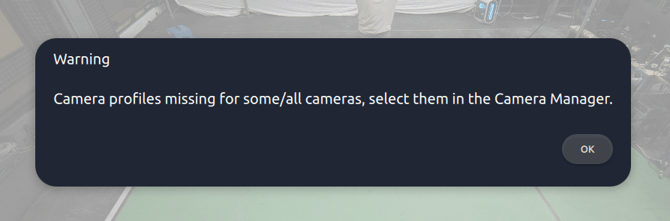
Camera Managerbutton. - Your camera model will determine whether a default or custom camera profile is required.
- Using the Z camera or any other custom camera will require you to create a Custom camera profile for your lens intrinsic. Check out this article to understand how to set up a Custom Camera Profile.
- Once you’ve applied each camera profile, click
Save
Note: If a camera profile is missing, the Process button will remain disabled.
Option 1: Processing a Checkerboard Calibration
.png?width=319&height=103&name=Screenshot%20from%202026-03-10%2014-26-23%20(1).png)
-
Select the
Checkerboardcalib type in the dropdown menu. This will remove the ability to select the Y-pose start and end times. -
Enter the clap times:
- We now have three options when it comes to synchronisation These include the traditional Clap, Synced and Timecode.
- If the videos are synchronised, select either Synced or Timecode, depending on your requirements with the timecode metadata.
- If the videos are not synchronised (e.g GoPro videos). Watch the video and input the start and end clap times.
- We now have three options when it comes to synchronisation These include the traditional Clap, Synced and Timecode.
-
Click
Process
.png?width=625&height=352&name=Screenshot%20from%202026-03-18%2018-07-38%20(1).png)
While the Calibration take processes, you can queue Action Takes, so that they will automatically begin processing when the Calibration Take finishes.
Option 2: Processing a Human Calibration
.png?width=319&height=103&name=Screenshot%20from%202026-03-10%2016-00-53%20(1).png)
-
Select the
Humancalib type in the dropdown menu. -
Enter the clap times:
- We now have three options when it comes to synchornisation These include the traditional Clap, Synced and Timecode.
- If the videos are synchronised, select either Synced or Timecode, depending on your requirements with the timecode metadata.
- If the videos are not synchronised (e.g GoPro videos). Watch the video and input the start and end clap times.
- We now have three options when it comes to synchornisation These include the traditional Clap, Synced and Timecode.
-
Enter the Y-pose times:
- The time the actor begins the Y-pose
- Watch the video playback and note down when the Y-pose begins.
- The time the actor finishes the Y-pose
- Watch the video playback and note down when the Y-pose ends.
- The time the actor begins the Y-pose
-
Enter the actor’s height in meters, excluding footwear
-
Click
Process
While the Calibration take processes, you can queue Action Takes, so that they will automatically begin processing when the Calibration Take finishes.
Below is a comprehensive walkthrough of the calibration process.
Reviewing your Calibration Take
Calibration take quality can only be reviewed once processing is complete.
- Successful calibration is indicated by a green circle on the take list. Additionally, the viewport displays an active overlay of the calibrated space and a camera overlay showing their position in world space.
-
- The active area should align with the perimeter defined during the Checkerboard calibration. If this doesn’t match this could represent an issue with the calibration.
- The camera icons overlayed on top of any visible cameras in the videos, if the overlays are not positioned correctly, this indicates a poor quality calibration.
- The origin created during a Checkerboard calibration should be aligned with the checkerboard on the floor. Use these visual indicators to identify and resolve calibration errors. For instance:
When you perform a calibration, the system uses the starting location of the Y-pose sequence to define the origin of the 3D calibration. It will then track the furthest locations you walk in each direction away from the origin, to define the desired perimeter of the capture volume by connecting those locations in the form of a convex hull. This ensures that during the action takes, only actors within the capture volume will be tracked.
- Select the
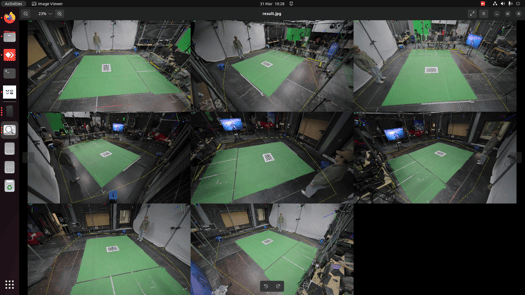
Calibration Resultsbutton; from here, you can examine the calibration mosaic
Checkerboard Calibration
This view illustrates the active area generated during the checkerboard calibration.
- If this area does not accurately reflect the path taken during the calibration process, the capture may need to be repeated.
Human Calibration
- This view overlays 2D and 3D tracking from each camera’s perspective.
- Blue Skeleton: Independent 2D observation from the camera.
- Red Skeleton: The system's 3D estimation.
- What to look for:
- High quality calibrations will demonstrate the skeletons closely aligned to each other.
- A large discrepancy between the blue and red skeletons indicates a camera that may need to be removed from the session.
.png?width=670&height=188&name=cam_calib_transformations%20(1).png)
.png?width=670&height=377&name=frame1%20(1).png)