---
title: Importing videos into the project
description: "Step-by-step guide to importing video into Genesis. Master the \"Import from Folder\" method, troubleshoot invalid takes, and ensure camera naming consistency for accurate 3D processing."
---
[Skip to content](https://docs.move.ai/knowledge/genesis-importing-videos-into-the-project#main-content)

Open main navigation
Close main navigation
- [Move](https://www.move.ai/)
[Move](https://www.move.ai/)
Welcome to the Move Knowledge Base
- There are no suggestions because the search field is empty.
1. [Move Docs](https://docs.move.ai/knowledge?hsLang=en)
2. [Genesis](https://docs.move.ai/knowledge/genesis?hsLang=en)
3. [Genesis Post](https://docs.move.ai/knowledge/genesis?hsLang=en#genesis-post)
# Importing videos into the project
### **Overview**
When importing videos into your project, each video is imported into the **Takes** dropdown menu on the left-hand side. Takes are used to organise your video footage and determine how the system processes the data within them.
If your imported video file is named using a recognised convention, for example, `Cam01_Calibration_001` The application will automatically identify and set the Take as a Calibration Take.
### **How to Import Videos**
There are two methods available for importing videos into your project:
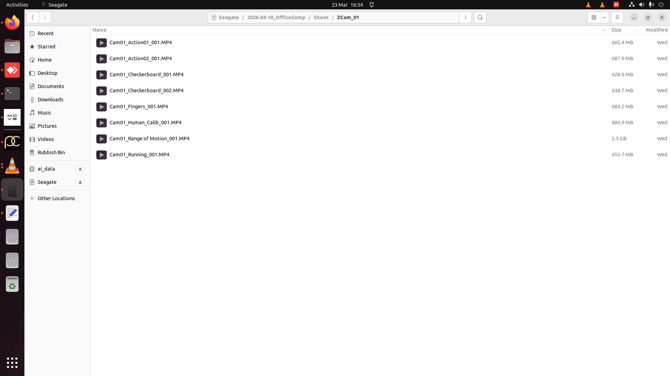
**Import Takes from Folder** This method allows you to automatically create Takes from a batch of videos in one go. It is the recommended approach when importing a large number of video files, saving time by generating Takes automatically rather than creating them individually.
### **Prerequisites**
1. **File Naming Convention**
Video file names should begin with the camera number, followed by the name of the Take. For example: `cam01_take1.mp4` or `cam01_calib.mp4`.
1. **Camera Naming Consistency**
Cameras must remain in the same positions for both Calibration Takes and Action Takes. The system relies on the camera position data captured during calibration to accurately process your Action Takes. If your cameras have moved or are in a different orientation between recordings, ensure you are referencing the correct Calibration Take that matches the camera positions used during that Action Take recording.
### **Import Takes from Folder**
Automate Take creation by batch-importing videos according to their file naming conventions.
1. Click `Import takes from Folder`
2. Locate and open the desired folder containing the videos
1. The application will scan the selected folder for any video files that adhere to the naming convention.
3. The **Available takes** will appear and be ready to import into the project. From here, you can either selectively import specific takes or use the `Import all available takes`option to include everything found in the folder.
1. If there is an issue with an imported video, it will appear in the `Invalid Takes` section. This will likely be due to the naming, resolution or fps of these videos.
4. To preview a video before importing, select the specific take and then click the video file to play it.
**Next Step:** [Post Processing and Using Actor Profiles](https://docs.move.ai/knowledge/genesis-processing-actor-profiles?hsLang=en)→ Continue to the next article in Processing on Genesis.
- [Genesis](https://docs.move.ai/knowledge/genesis?hsLang=en#main-content)
- [Overview](https://docs.move.ai/knowledge/genesis?hsLang=en#overview)
- [System Prep & Setup](https://docs.move.ai/knowledge/genesis?hsLang=en#system-prep-setup)
- [Genesis Live](https://docs.move.ai/knowledge/genesis?hsLang=en#genesis-live)
- [Genesis Post](https://docs.move.ai/knowledge/genesis?hsLang=en#genesis-post)
- [Output Data](https://docs.move.ai/knowledge/genesis?hsLang=en#output-data)
- [Optimising your System](https://docs.move.ai/knowledge/genesis?hsLang=en#optimising-your-system)
- [System Management](https://docs.move.ai/knowledge/genesis?hsLang=en#system-management)
- [Release Notes](https://docs.move.ai/knowledge/genesis?hsLang=en#release-notes)
- [Move One](https://docs.move.ai/knowledge/move-one?hsLang=en#main-content)
- [Move One Pricing](https://docs.move.ai/knowledge/move-one?hsLang=en#move-one-pricing)
- [Move Platform](https://docs.move.ai/knowledge/move-one?hsLang=en#move-platform)
- [Move One iOS App](https://docs.move.ai/knowledge/move-one?hsLang=en#move-one-ios-app)
- [Using your Animations](https://docs.move.ai/knowledge/move-one?hsLang=en#using-your-animations)
- [Legacy Accounts - App Store Billing](https://docs.move.ai/knowledge/move-one?hsLang=en#legacy-accounts-app-store-billing)
- [Troubleshooting](https://docs.move.ai/knowledge/troubleshooting?hsLang=en#main-content)
- [Z-Cams](https://docs.move.ai/knowledge/troubleshooting?hsLang=en#z-cams)
- [Genesis](https://docs.move.ai/knowledge/troubleshooting?hsLang=en#genesis)
[](http://move.ai)
www.move.ai
Copyright © 2026, Move AI
```json
{
"@context" : "https://schema.org",
"@type" : "VideoObject",
"contentUrl" : "https://26134430.fs1.hubspotusercontent-eu1.net/hubfs/26134430/video_assets/383561409734/inherited/web_optimized.mp4",
"dateModified" : "2026-03-25T16:07:11.397Z",
"duration" : "PT29S",
"height" : 1080,
"name" : "Screencast from 23-03-26 16_55_17 (1)",
"thumbnailUrl" : "https://26134430.fs1.hubspotusercontent-eu1.net/hubfs/26134430/Screencast%20from%2023-03-26%2016_55_17%20(1).webm/medium.jpg",
"uploadDate" : "2026-03-25T16:07:01.900Z",
"width" : 1920
}
```